 ToDesk
Temporary passwords
Temporary passwords can refresh after remote sessions or on a schedule to reduce the risk of long-lived credentials.
Use ToDesk to connect to a remote computer, control the desktop, work with files, access unattended devices, work away from the office, or provide remote technical support. Individuals can reach their own devices, while teams can manage shared devices, members, access permissions, and connection activity.







ToDesk combines its transport engine, network routing, and codec technology to move remote screen and input data. Actual performance depends on both devices, network quality, routing, and the product edition in use.
These are technical figures published by ToDesk and should not be read as guaranteed results for every remote session.
ZeroSync® transport
Network routing
ToDesk codec
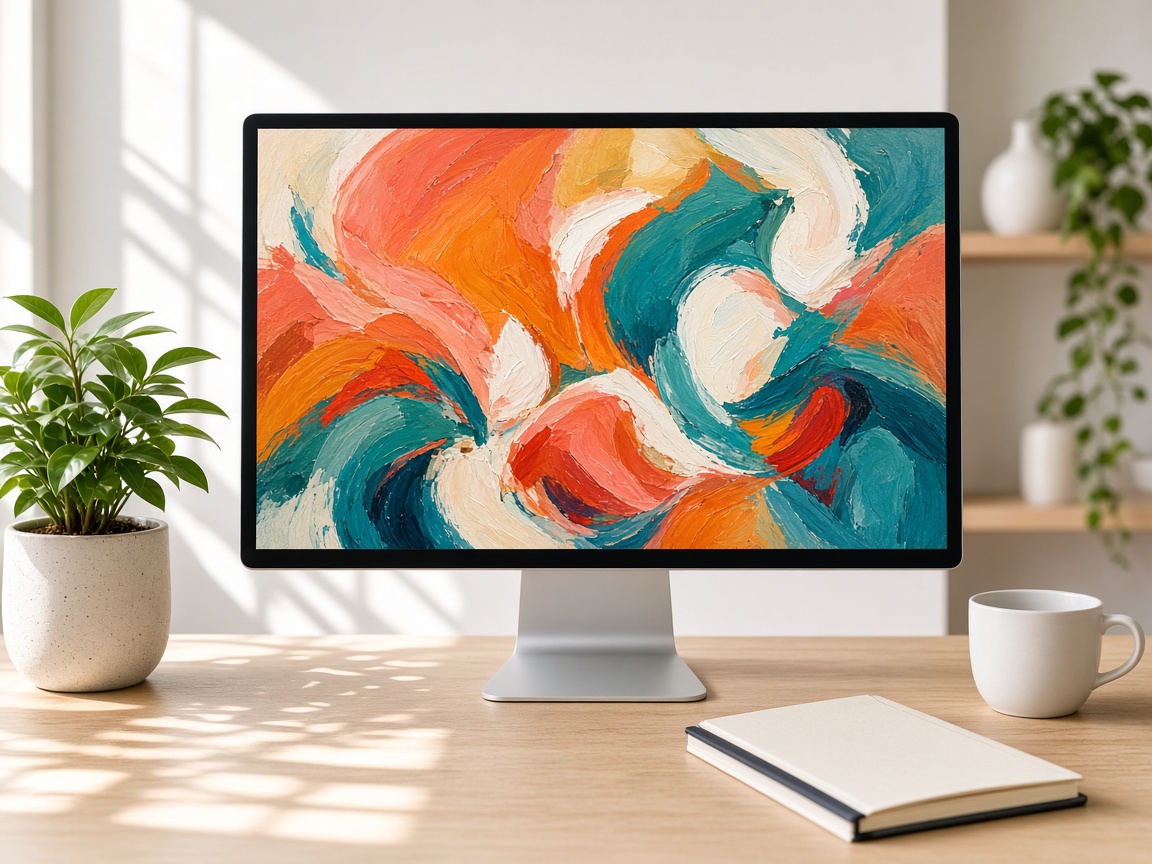
The controller and remote device do not have to use the same operating system. Connect from the computer, phone, or tablet you have with you while software, files, and workloads stay on the remote machine. Controller, controlled-device, and advanced feature support varies by platform; see the download page for the current compatibility details.
 Windows
 macOS
 HarmonyOS
 Linux
 iOS/iPAD
 Android
Remote desktop lets you keep using a computer even when you are somewhere else. What changes from one use case to another is the level of image quality, peripherals, unattended access, permissions, and device management you need.
Keep software, files, and your working environment on the remote computer. ToDesk lets you view the desktop and keep working without rebuilding the same setup on the device in front of you.
Remote desktop · File transfer · Clipboard
Creator and high-performance editions are designed for graphics, video, and other demanding workflows, with higher-quality display options, color-focused features, pen-tablet mapping, and multi-display capabilities depending on the edition.
Color · Pen tablet · Multiple displays
Unattended access, remote terminal tools, device grouping, and connection records can extend remote desktop from a single computer to ongoing device operations. Team and enterprise products add broader member, device, and permission management.
Device groups · Connection management
For software settings, system problems, or device troubleshooting, remote assistance lets a trusted helper see the remote screen and operate it when the required permissions have been granted.
Device ID · Password · Permission
ToDesk provides temporary passwords, two-step verification, connection permissions, encrypted transport, privacy features, and connection records. The available controls vary by platform, account relationship, and product edition.
Temporary passwords can refresh after remote sessions or on a schedule to reduce the risk of long-lived credentials.
A mobile device can act as the account's primary device and approve new logins or protected remote connections.
On supported remote systems, privacy features can reduce what is exposed on the physical display during a remote session.
Remote devices can restrict who may connect, including same-account access and approval requirements for other accounts.
Recent login and remote-connection activity can be reviewed, with broader audit tools available in team and enterprise environments.
ToDesk states that remote screen, file, and clipboard data are protected in transit with SSL and additional encryption mechanisms.
Team extends individual remote access with shared devices, members, entitlements, connection controls, and security management.
 Remote work
Connect to an office computer from home or while traveling and keep using the applications, documents, and systems already installed there.
 Unattended access
Configure your own device in advance so it can be reached later even when nobody is sitting in front of the remote computer.
 Technical support
See the same desktop as the person asking for help and troubleshoot software or system settings more directly than over the phone.
 Remote wake
When hardware and network conditions support it, wake a remote computer through WOL-related features before starting a remote session.
 Phone to PC
Use a phone to check a desktop, deal with a quick task, or confirm that an application is still running while away from the computer.
 Remote terminal
When a full graphical desktop is unnecessary, supported environments can use a remote terminal for commands, configuration, and logs.
 Multi-device support
Support staff working across several computers can move between remote sessions without treating each machine as an unrelated one-off connection.
 Remote monitoring
Check a remote desktop or application to see whether a long-running task is still progressing without having to remain beside that machine.
 Mobile work
Use a mobile device for a quick connection when a spreadsheet, document, or application is still on the office computer.
 Remote design
Connect a lightweight laptop to a more powerful workstation so demanding software and rendering workloads stay on the remote machine.
 IT operations
Maintain computers at another location through remote desktop, terminal access, device organization, and connection records where supported.
 Business applications
Keep business software and its data on the office computer while accessing the same working environment from another location.
 Remote teaching
Demonstrate software, walk someone through an operation, or provide hands-on assistance by connecting to the relevant remote computer.
 Branch devices
Reach computers at stores, branches, or other remote locations to deal with software configuration and everyday device problems.
 Remote editing
Keep media and project files on a workstation while remotely checking the timeline, making changes, or monitoring an export task.
 Family help
When a family member has a software or computer problem, remote assistance can make it easier to see the issue and guide the fix.
 Remote demos
Demonstrate software from the computer where it is already configured instead of recreating the entire environment on another machine.
 Server-room devices
Check managed computers from another location and open a desktop or terminal session only when a problem needs attention.
 Pen-tablet workflows
Supported creator-focused editions provide pen-tablet mapping for remote drawing, illustration, and other creative workflows.
 Multi-user collaboration
Selected team and enterprise options add collaboration and centralized management for members, devices, and remote connections.
 Remote photo review
Leave large photo libraries on the studio computer while using remote desktop to review images and perform routine operations.
 Employee support
Internal IT staff can view an employee's computer and guide or perform authorized troubleshooting without immediately going on site.
 Multiple computers
Add frequently used computers to a device list so they are easier to find and access from your usual controller device.
 Dedicated software
When an application only runs on one particular computer, remote desktop can provide access without moving the software or its environment.
Start with the basics of remote access, unattended connections, files, security, and team use.
ToDesk is remote desktop and remote access software. It can be used to connect to a remote computer, control its desktop, work with files, access unattended devices, work remotely, provide technical support, and manage remote devices.
ToDesk offers a free Personal plan. Under the current ToDesk user agreement, the Personal edition is licensed for non-commercial use on personally owned devices. Business, organization-owned, or other commercial use requires an appropriate commercial license.
Yes, ToDesk can be configured for unattended remote access. Whether a connection can proceed without someone at the remote device depends on its account, password, connection permission, and security settings.
Yes. ToDesk supports remote file transfer. The available upload, download, copy-and-paste, drag-and-drop, and file-management methods vary by operating system and client version.
Yes. ToDesk can be used to reach an office or home computer while away. Applications, files, and workloads remain on the remote device while the controller displays the desktop and sends input.
Yes. With the appropriate permission, support staff can view and operate a remote computer to troubleshoot software, system, and device problems. Team and enterprise products add broader member and device-management features.
ToDesk provides features such as temporary passwords, login and connection verification, connection permissions, encrypted transport, privacy controls, block and allow lists, and activity records. Users should still protect account credentials and only grant remote access to trusted people.
Personal remote access is mainly about reaching your own devices or handling one-off assistance. Team use adds shared devices, members, permissions, connection entitlements, and centralized records for organizations that need to manage remote access across multiple people and devices.
Choose the devices you want to connect and visit the download page for the appropriate client, compatibility details, and installation guidance.